Other Sources
To import emails from other sources (e.g. PST, EML, IMAP, EWS) into the REDDOXX Cloud, a few steps are required.
Here is a brief outline of the process:
- You will need a Windows system (Windows 10 / 11) on which the REDDOXX Toolbox is installed (there should be sufficient local storage space to use files such as PST / EML locally, or sufficient space for temporary storage from IMAP / EWS)
- An access token will be created in the REDDOXX Cloud to open the “Cloud Container” in the Toolbox
- The Toolbox is used to create tasks (depending on the sources) that are used to import the content into the cloud container
If E-Mails are to be imported from a UMA into the REDDOXX Cloud, this is described in a separate guide: https://uma-rdx.docs.reddoxx.com/en/overview/cloud-archive
To access the REDDOXX Cloud using the Toolbox, you will need an access token.
You can create this at admin.cloud.reddoxx.com under Tenant => Access Tokens:
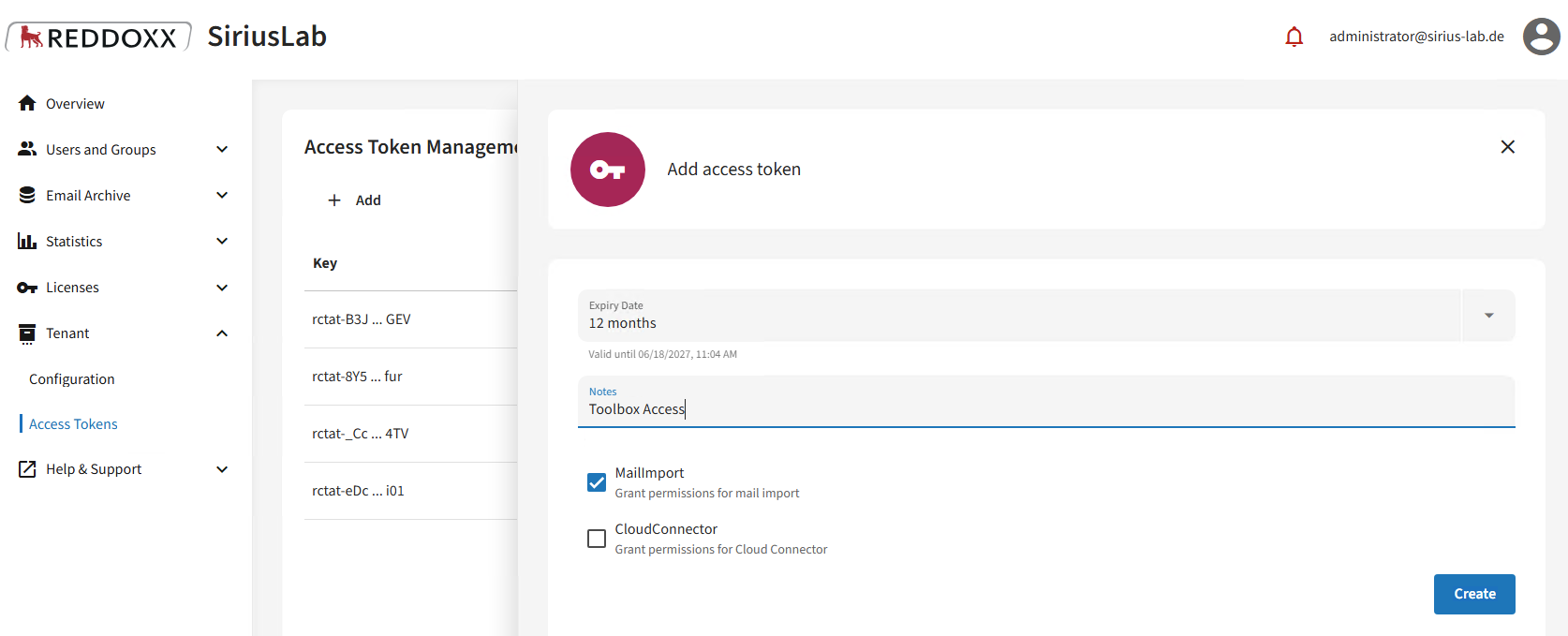
When you click ‘Create’, an API key will be displayed which you can copy once;
please make a note of this:
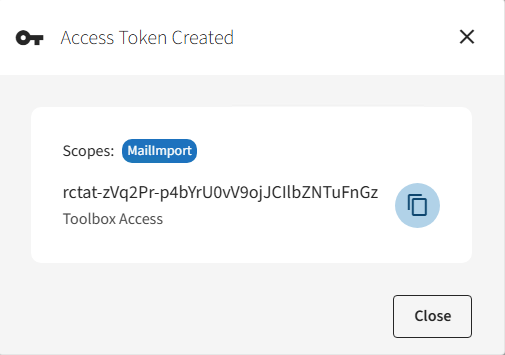
Also make a note of the Tenant ID (Tenant => Configuration => Tenant ID)
Please install the Toolbox on a Windows 10 / Windows 11 system, ensuring in particular that there is sufficient local disk space to accommodate the size of the files to be archived.
You can download and then install the Toolbox here: https://my.reddoxx.com/res/130
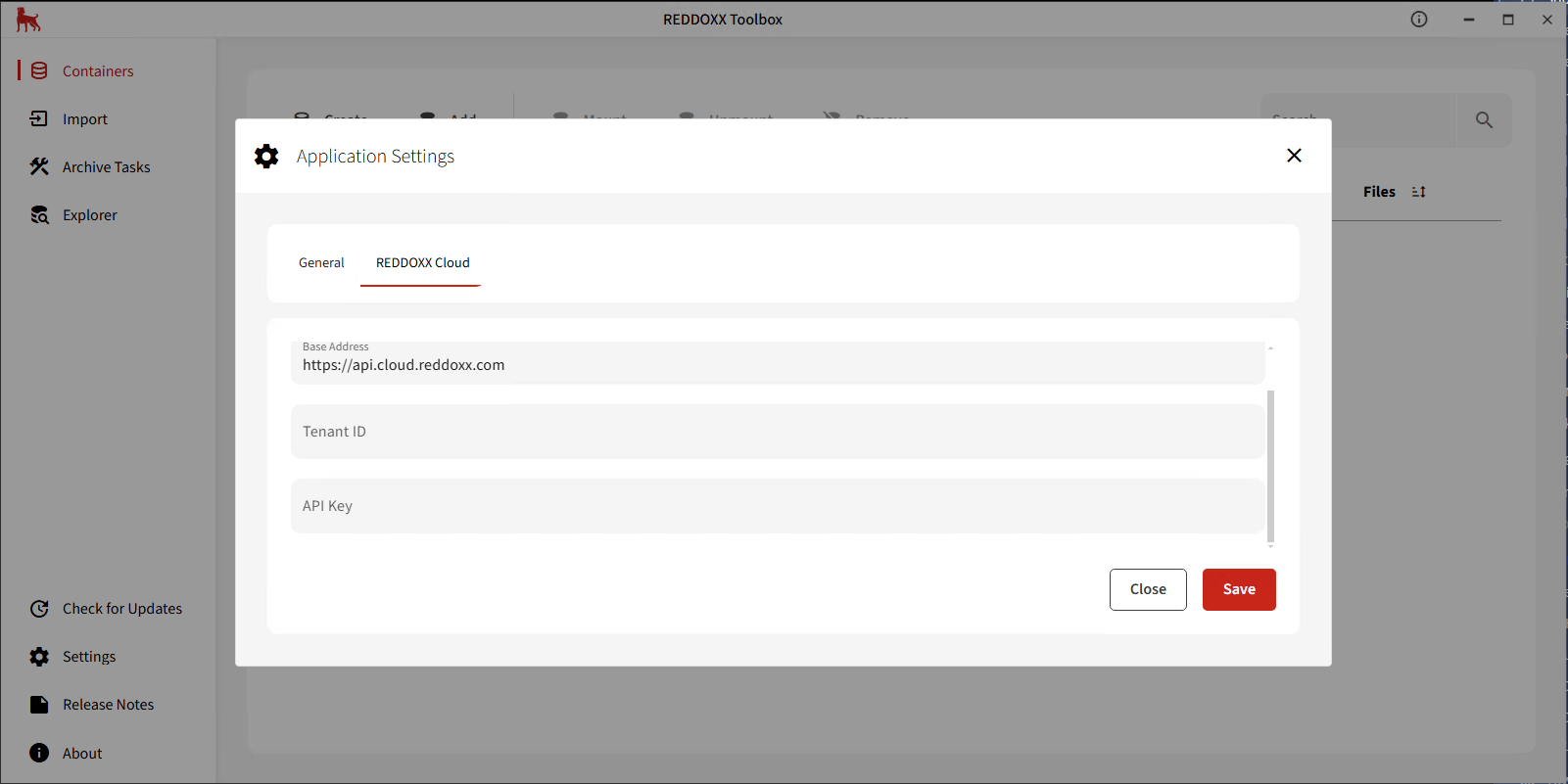
Launch the Toolbox and, under Settings => REDDOXX Cloud, enter the Tenant ID for your REDDOXX Cloud and the API key, as prepared in Step 1
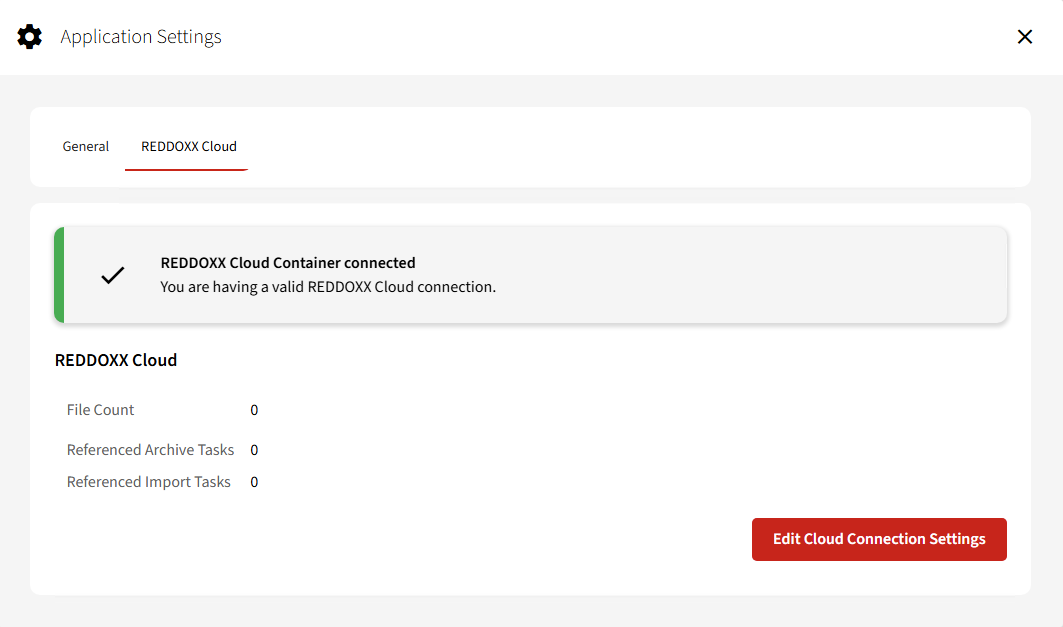
Once you have saved the settings, the Cloud Container should then be connected:
Create an import task in the Toolbox (Import => Add Import Task); this will, of course, depend on the format in which the data is ultimately available.
The individual import tasks are described in our Toolbox documentation