REDDOXX Maildepot
To import E-Mails from the REDDOXX onPrem appliance into the REDDOXX Cloud, a few steps are required.
Here is a brief overview of the process:
- On the REDDOXX appliance, create a share to enable access to the archive containers (and to determine their size)
- A Windows system (Windows 10 / 11) is required to which the archive containers can be copied
- To this system, the containers are copied and the Toolbox is installed
- An access token is created in the REDDOXX Cloud to access the “Cloud Container” in the Toolbox
- Using the Toolbox, tasks are created to import the contents of the archive containers into the Cloud Container
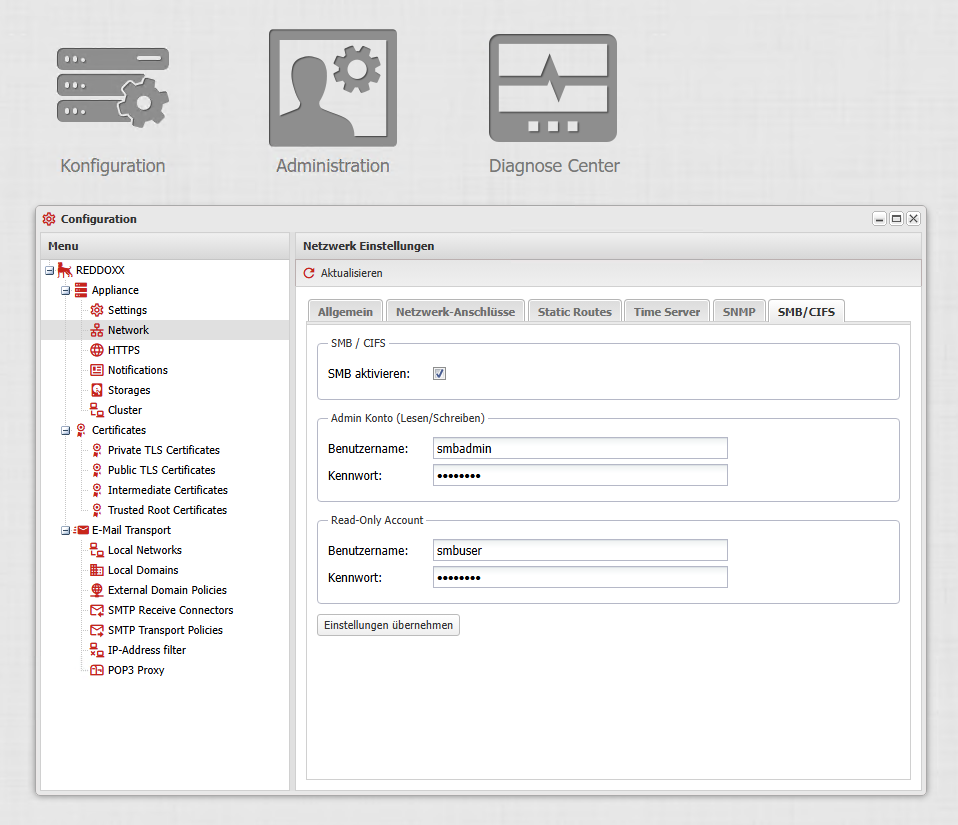
Please set passwords for ‘smbadmin’ and ‘smbuser’ in the appliance configuration => Network => SMB / CIFS.
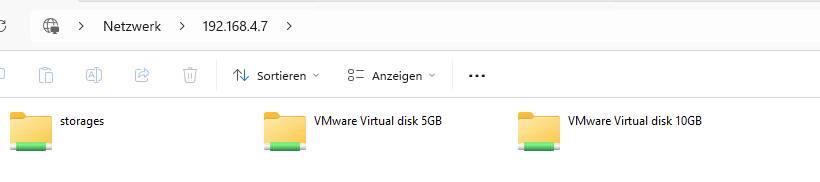
Then connect to the share and navigate to the storage volumes where the archive containers are located (please do not use the “storages” folder)
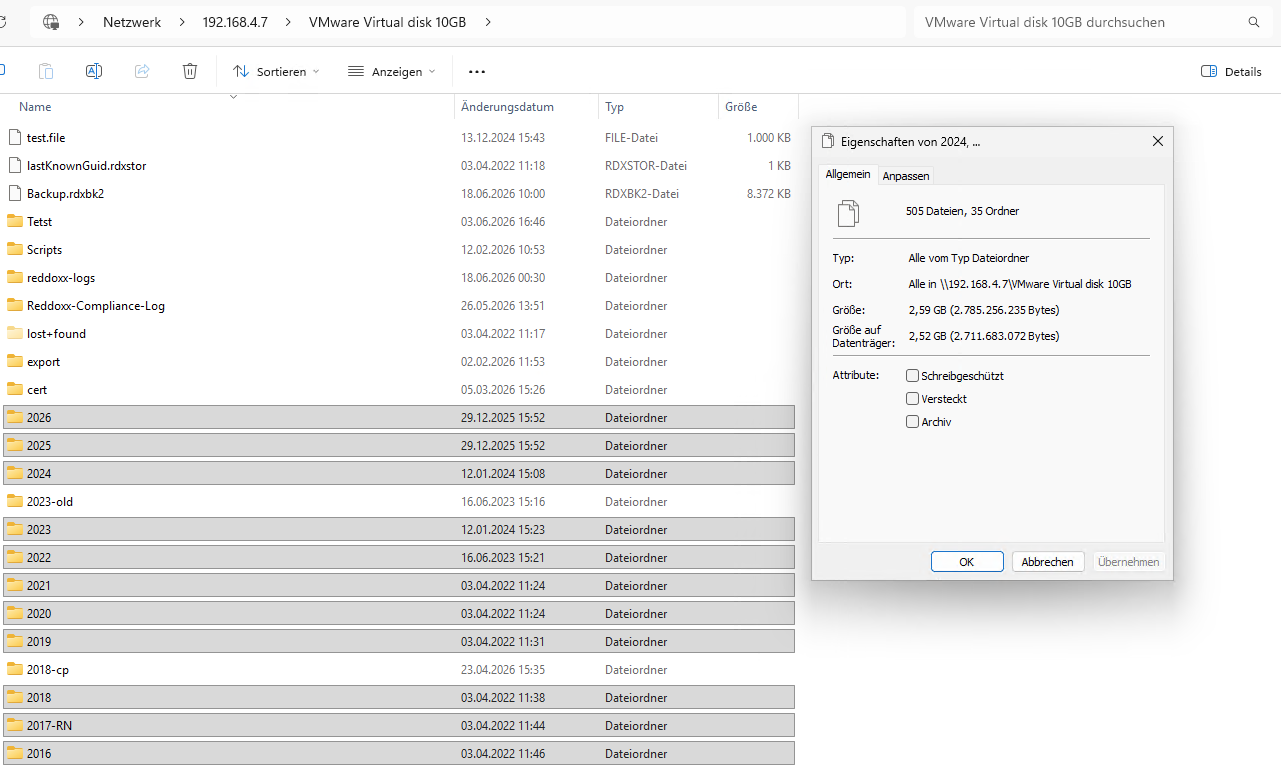
Select the containers and first check the properties to see how much space is required on the import system:
To access the REDDOXX Cloud via the Toolbox, you will need an access token.
You can create one at admin.cloud.reddoxx.com under Tenant => Access tokens:
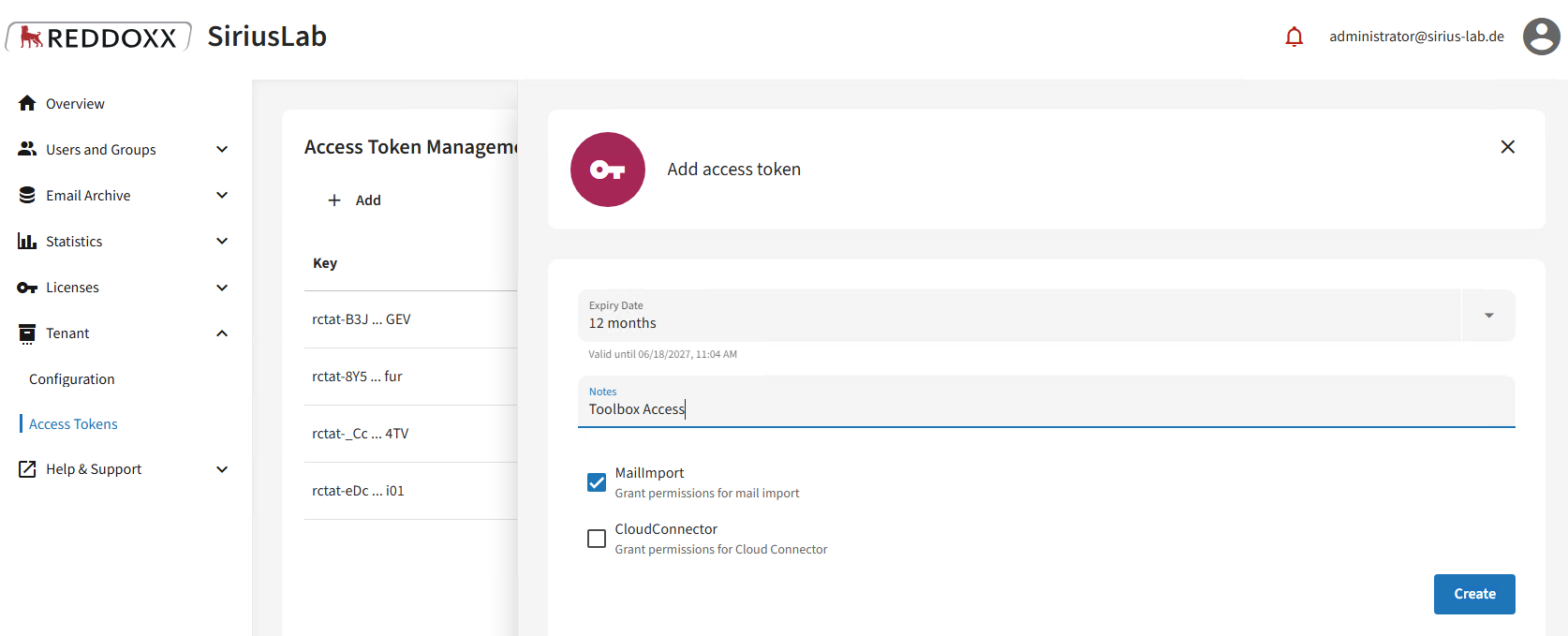
When you click on ‘Create’, an API key will be displayed which you can copy once;
please make a note of this:
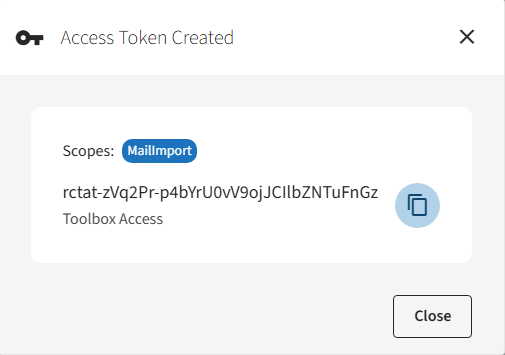
Also make a note of the Tenant ID (Tenant => Configuration => Tenant ID)
Please install the Toolbox on a Windows 10 / Windows 11 system which has sufficient local disk space to accommodate the size of the containers to be archived.
You can download the Toolbox here and then install it: https://my.reddoxx.com/res/130
Next, close all containers to be archived in the REDDOXX Appliance (MailDepot => Archive Container => select the relevant container => Unmount)
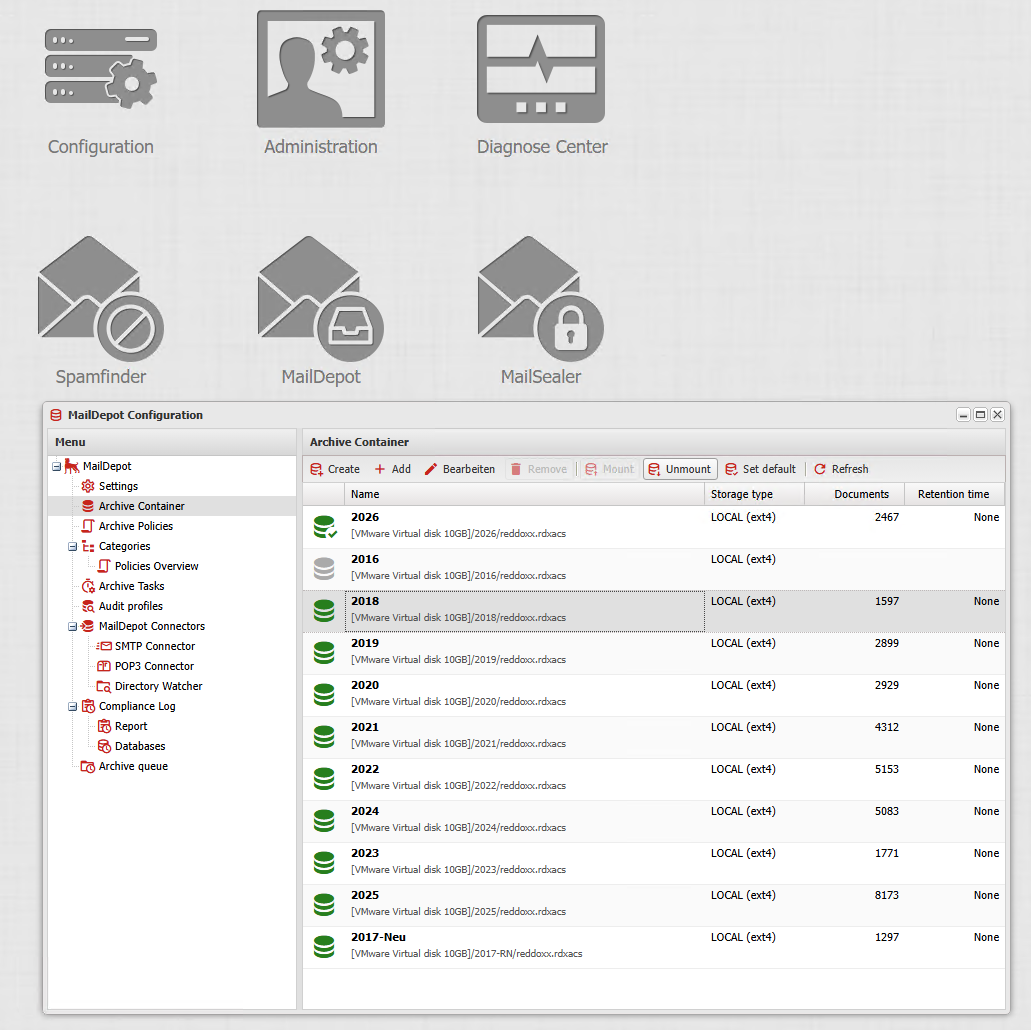
Now copy the containers you have closed using the share link from Step 1 to the system on which the Toolbox is installed
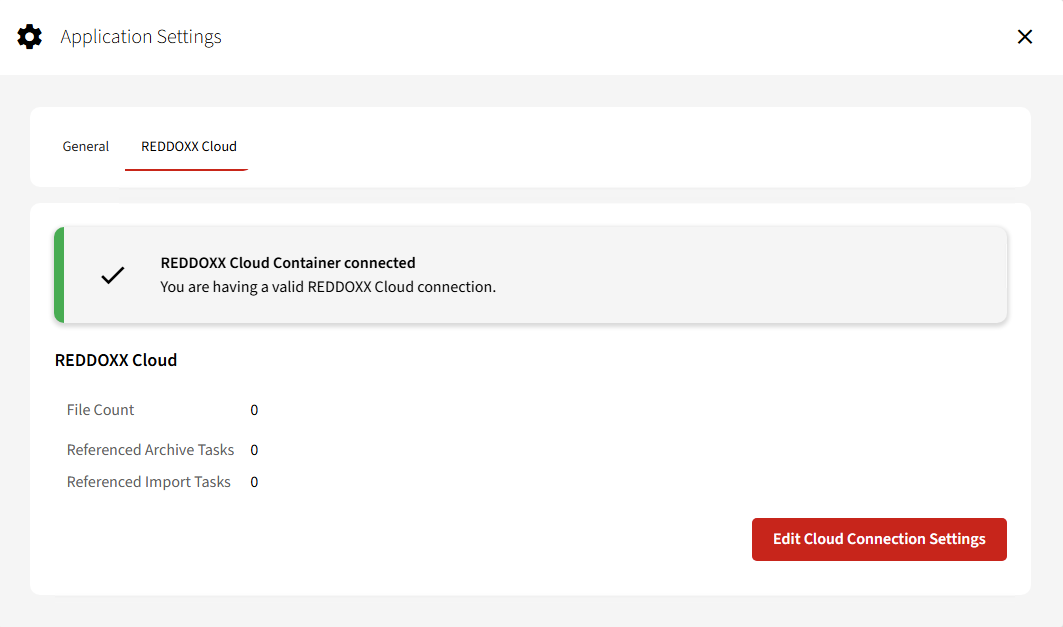
Launch the Toolbox and, under Settings => REDDOXX Cloud, enter the Tenant ID for your REDDOXX Cloud and the API key, as prepared in Step 2
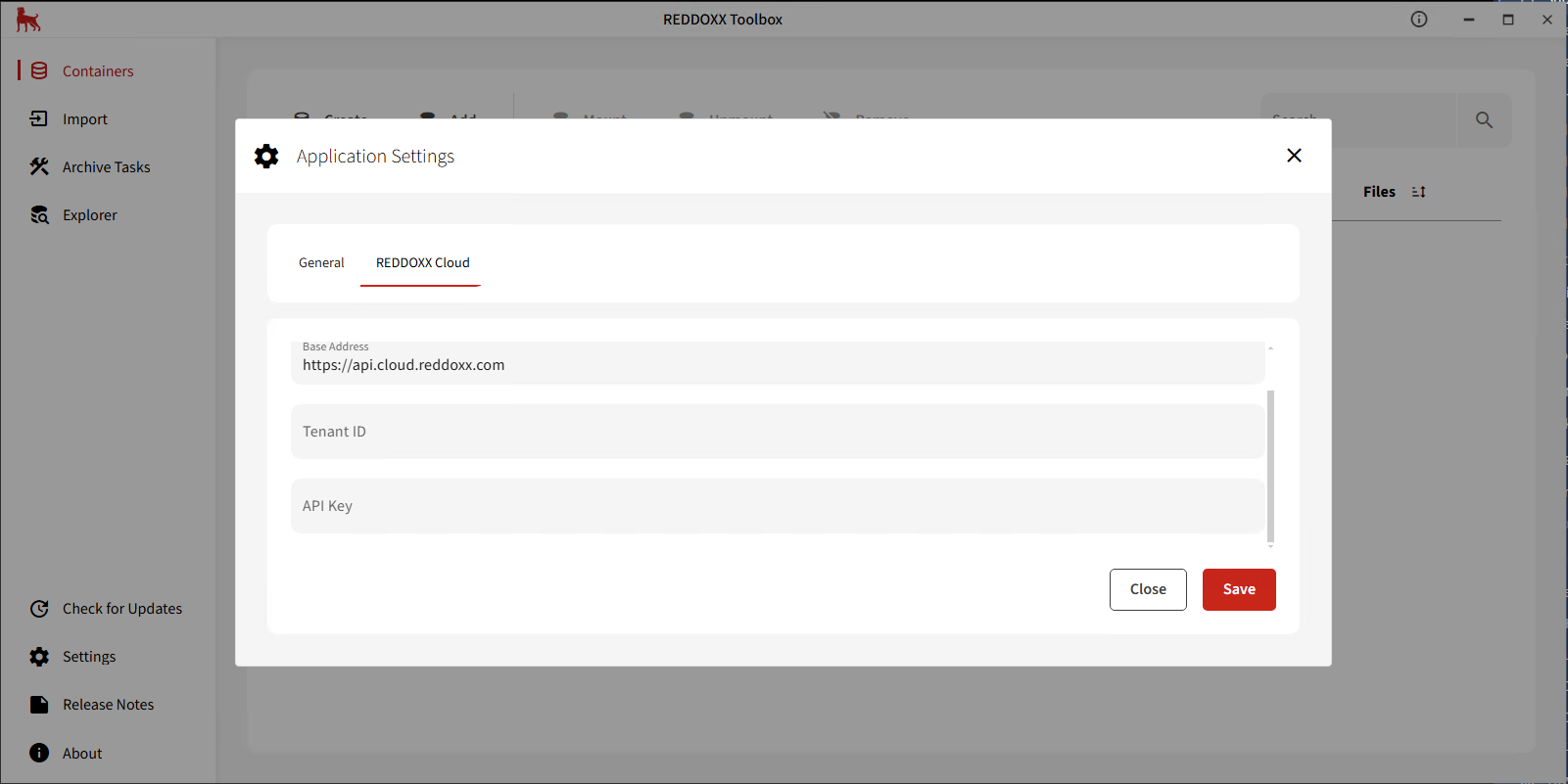
Once you have saved the settings, the Cloud Container should then be connected:
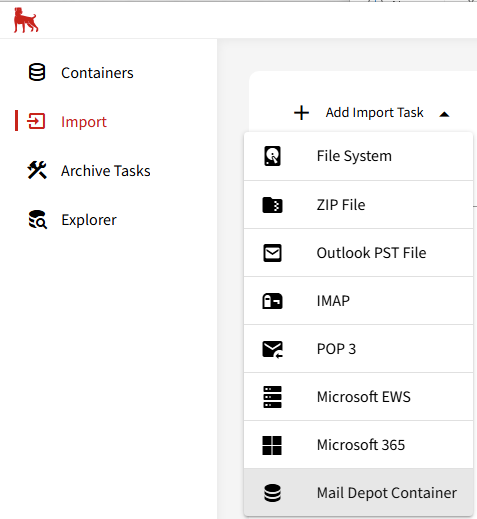
Create an import task in the Toolbox (Import => Add Import Task => Mail Depot Container)
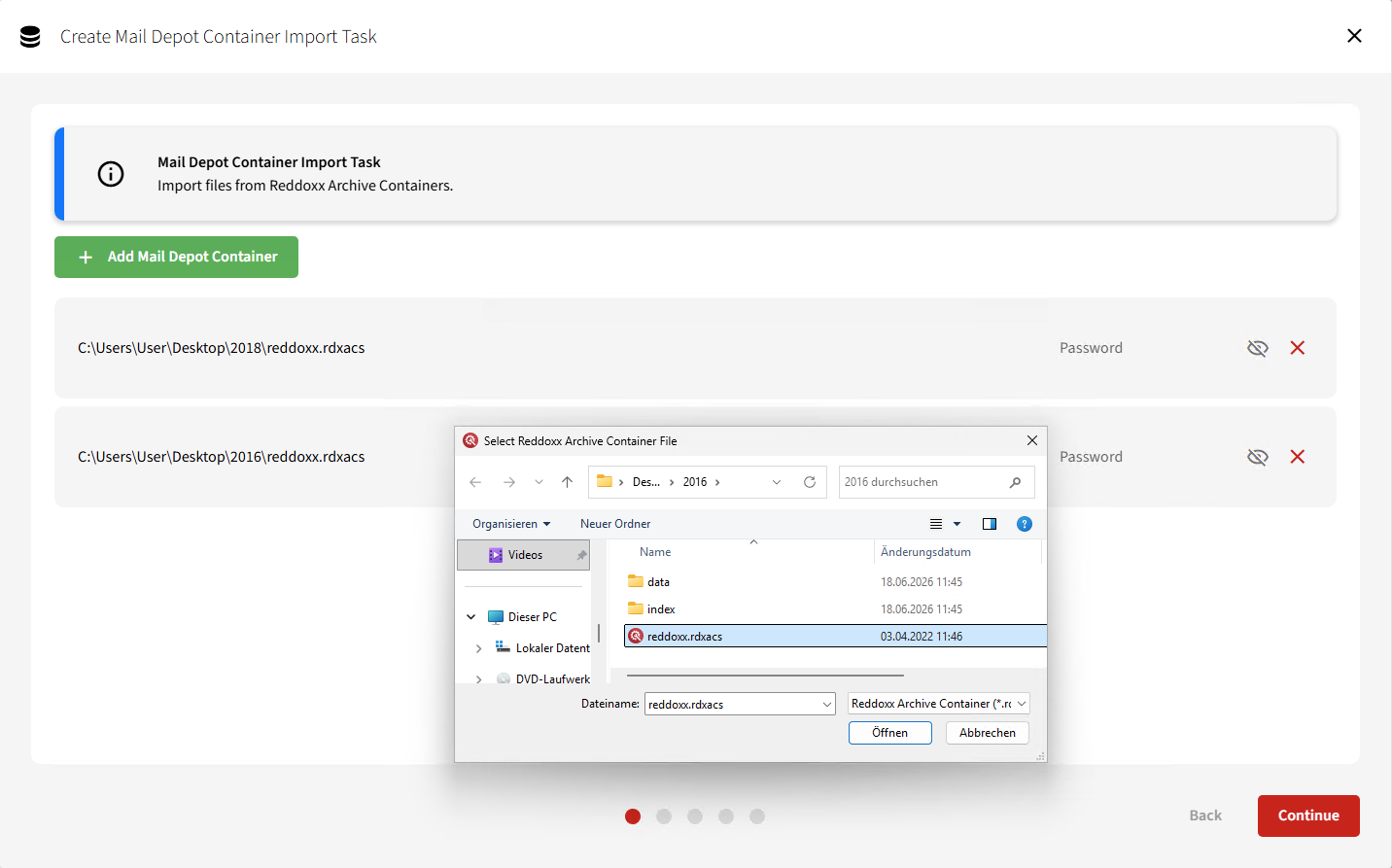
Select the container via “Add Mail Depot Container” (you must select the relevant reddoxx.rdxacs file here)
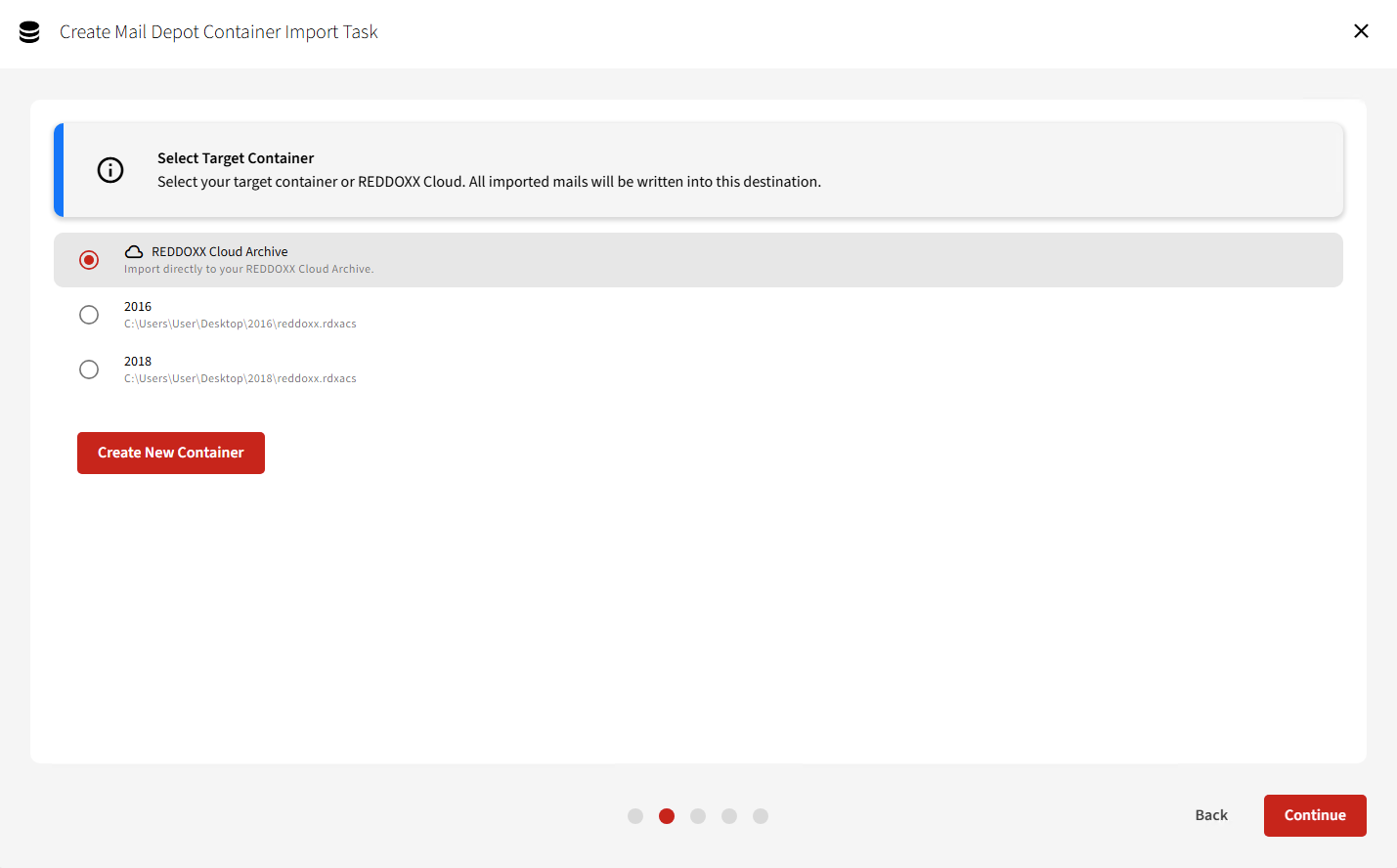
Next, select REDDOXX Cloud Archive as the destination container:
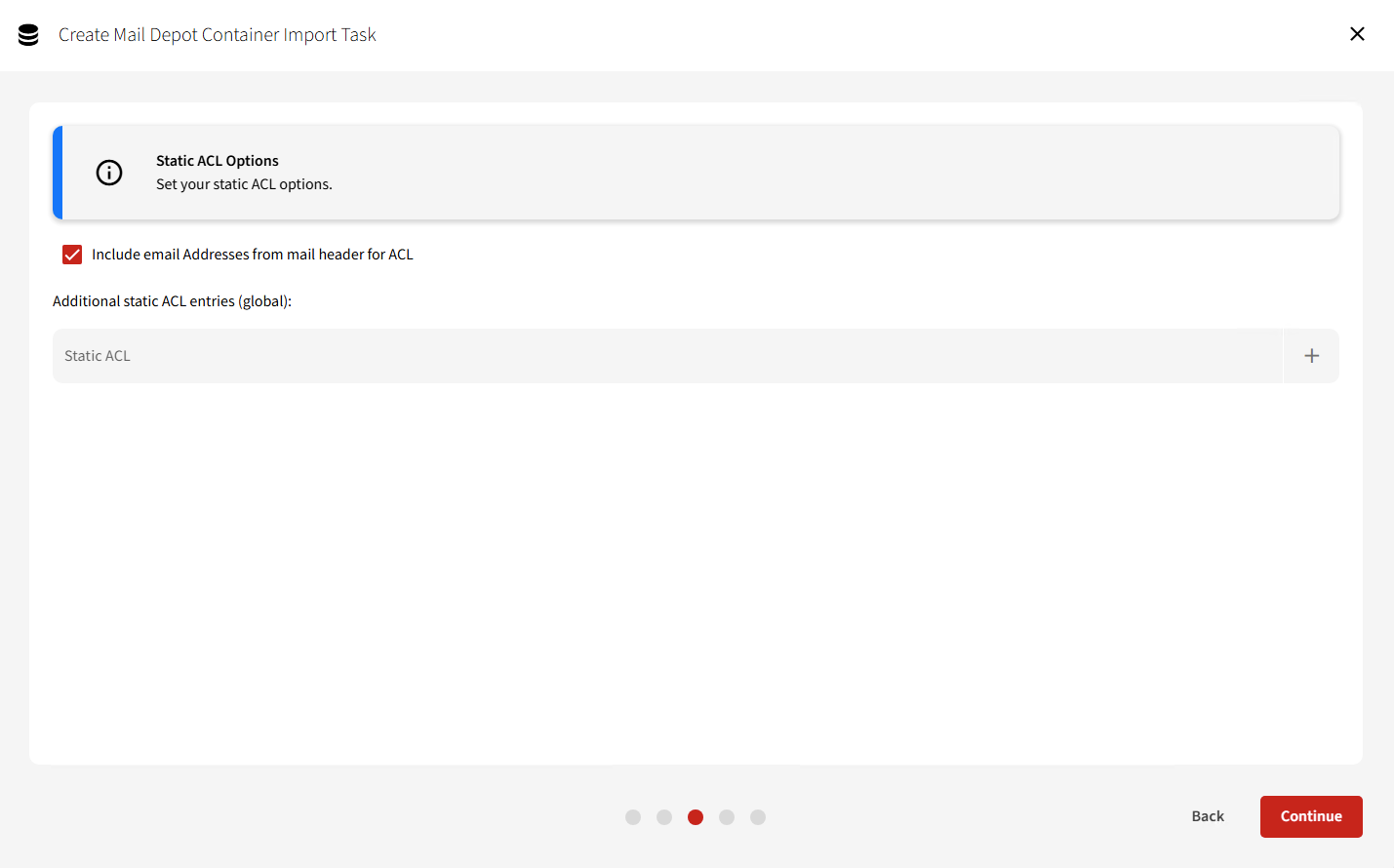
You can then also specify authorised access addresses (registered users with this email address as a delegate will then have access to the full content of the emails archived in this way):
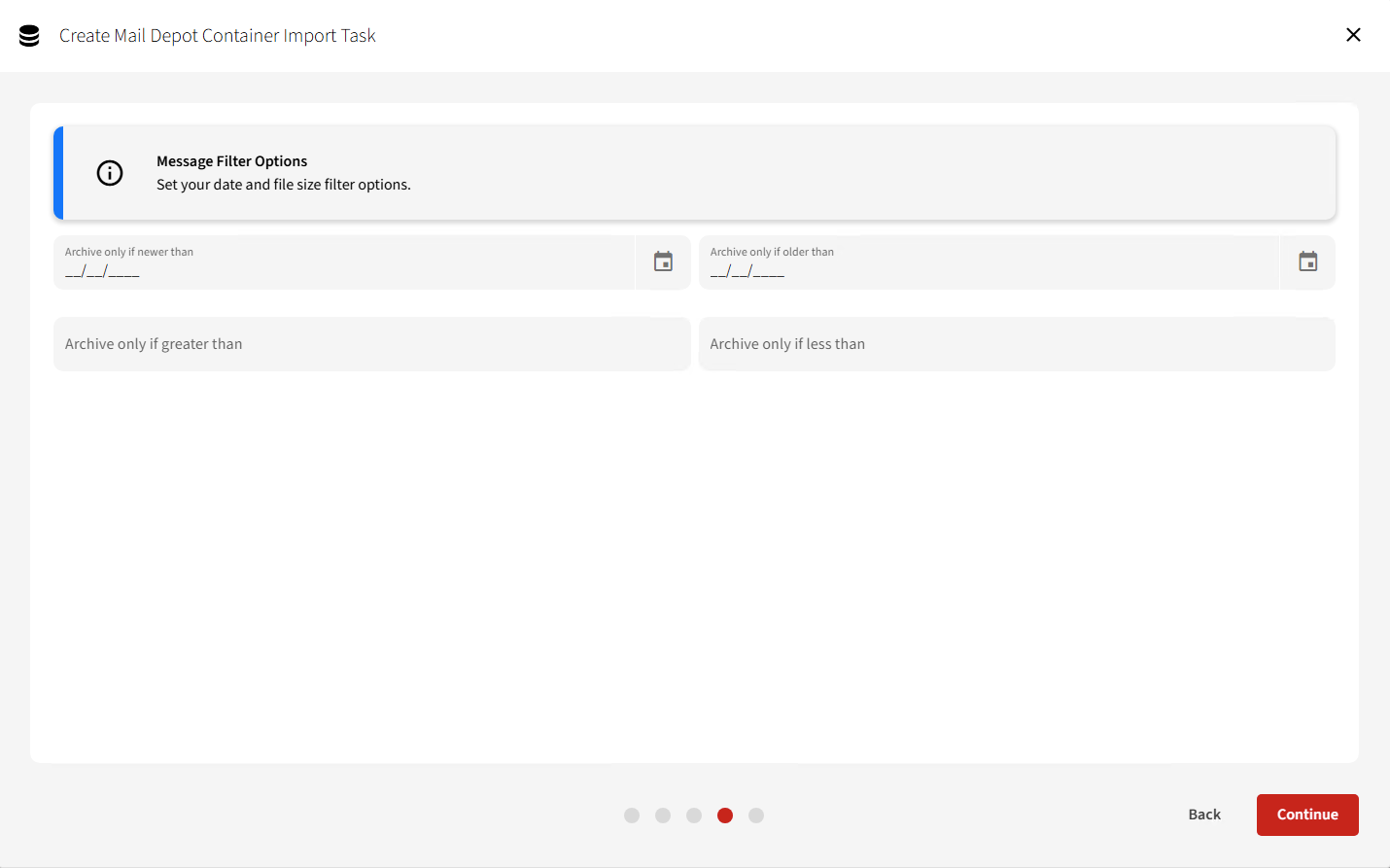
You can also filter the time period from which the emails are to be imported
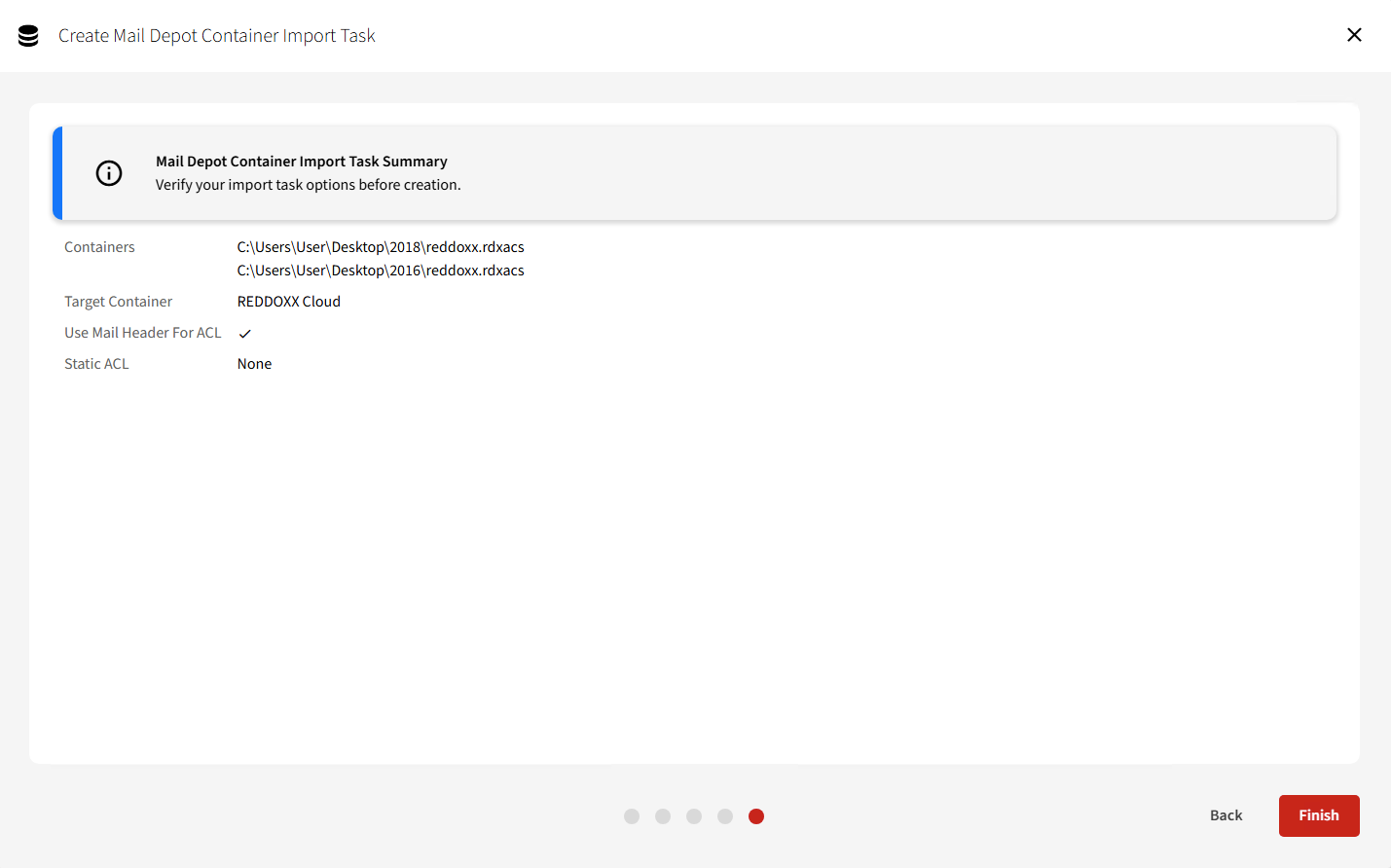
Finally, you will see an overview of the options you have set and can create the task:
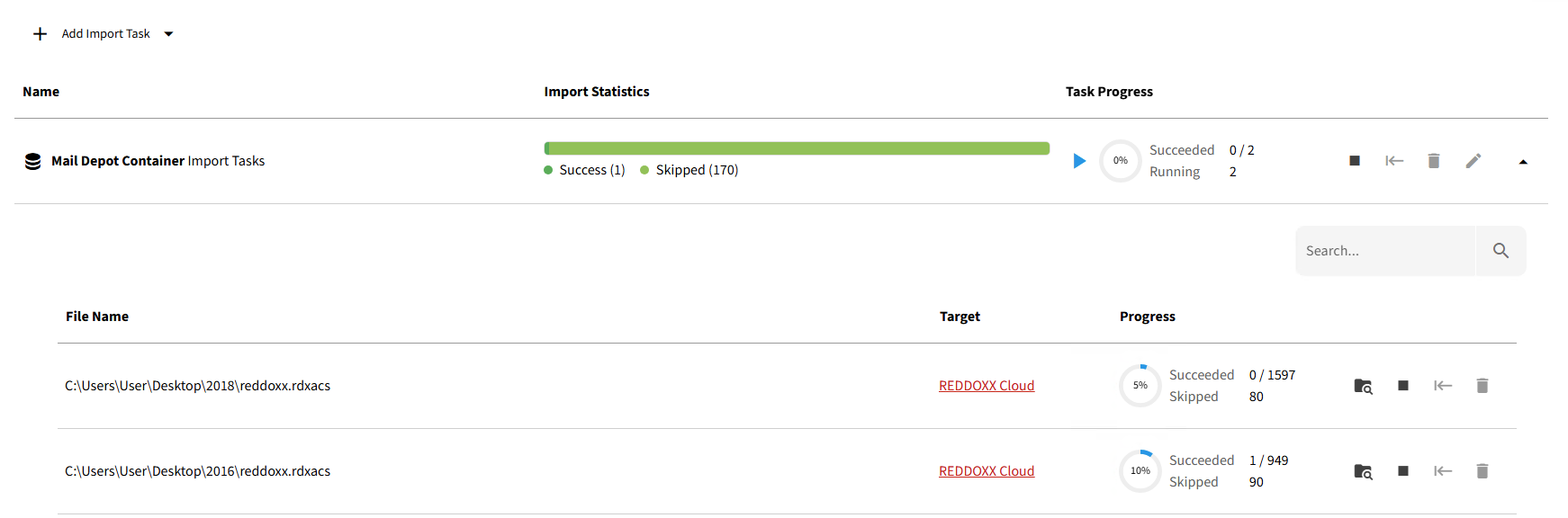
You will now see the task you have created in the task overview and can import the entire task group, or the individual containers within the task (if the task group is ‘expanded’), via the Start button:
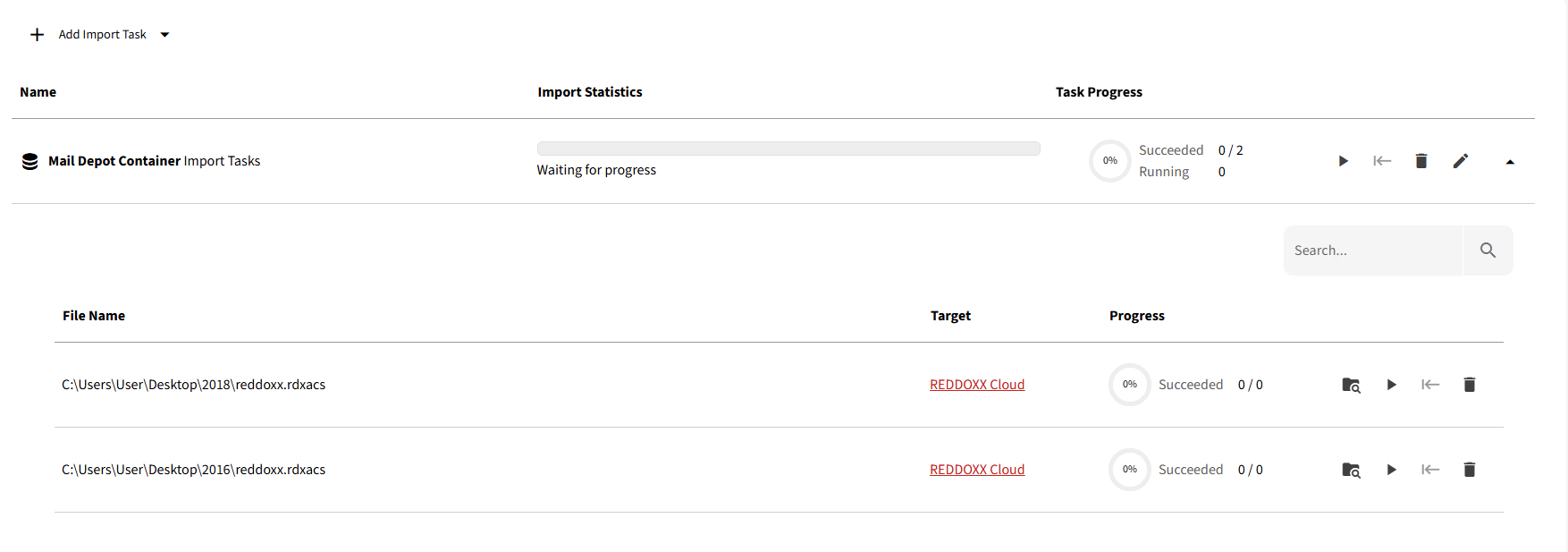
The progress is then displayed and can be monitored either whilst the import is in progress or once it has finished, using the ‘Browse folder’ icon